A Student's Experience with FastOpp Country Store Parts 2-4
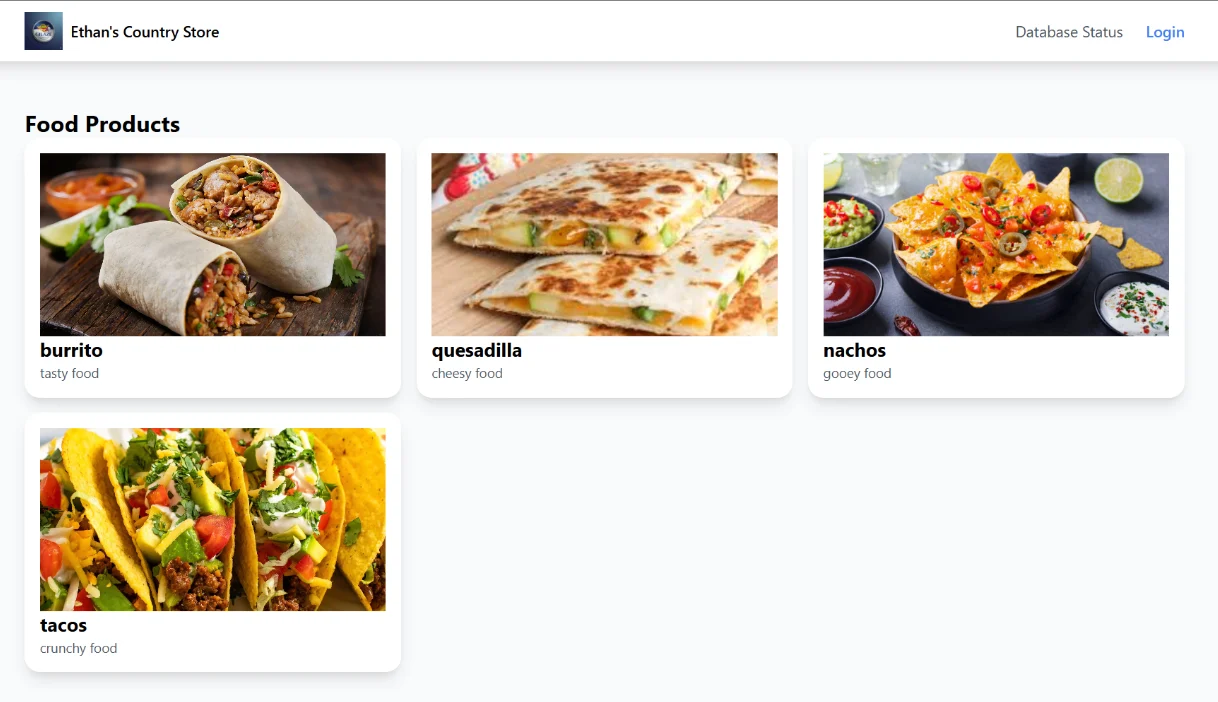
Recently I had the opportunity to complete parts 2-4 of the Country Store walkthrough videos and build upon my version of the country store. This article will not be a guide but rather an explanation of the process through the perspective of the builder and some insights to ensure that your process of building your country store goes smoothly.
Disclaimer: While it is not required, it is recommended to install and use Windows WSL during the walkthrough for a smoother experience.
Part 2: Adding Images and Admin Panel
Part 2 focuses on two things: adding real images to your store and a real admin panel to your FastAPI app.
In the first part of the guide, the walkthrough demonstrates hardcoding the image into the Food class.
What is a class, you may ask. Think of a car. All instances of the car class share the same attributes: car model, car brand, mileage, and age. When you buy a car from the dealer, you have your very own car instance. It has its own model, brand, mileage, and age. Similarity, all Food instances in this program share the same attributes.
Before, each Food instance knew its id, name, and description.
Did it click? We’re adding the image attribute to the car class. Each Food instance will now possess an image to display on the country store.
This can be found in step 1 of Build a database-driven country store with images, admin, and FastAPI (Parts 2-3) on hashnode and around 1:20 in FastOpp Country Store 1.2 - Static Images and SQLAdmin Setup with FastAPI on YouTube.
It looks something like this:
In models.py:
class Food(SQLModel, table=True):
Key points:
image_urlis an optionalstr, so it can beNonewhen no image is available.- The field is nullable in the database.
I already had Food defined without image_url, so I was just adding a new column here.
Before moving on, it’s recommended to store your food images in a designated folder located inside the images folder found inside the static folder.
… static/images/<your folder>
Now, we assign specific images to its designated food (Article Step 3, Video 3:30).
In routes/pages.py, find your list of foods which looks like this:
foods: list[Food] = [
After description= "....", adding image_url="<image url>" tells each food object
what image it’s assigned to, similar to a video game character learning a new spell.
It should now look like this:
foods: list[Food] = [
The walkthrough then goes through styling the image using Tailwind which you can do and customize on your own (not covered in this blogpost).
The final step of Part 2 (Article step 6, Video 9:20) focuses on modifying and adding
the FoodAdmin class to pages.py.
This is a significant step in building the country store because it adds the functionality of adding new foods and their attributes (description, image, etc.) through the UI in the admin panel. This is much easier and user friendly compared to adding new foods through VSCode every single time.
Part 3 - Connect Python Data Model to SQL Database
Part 3 focuses on connecting the store to a database so that new entries of food from the UI can actually be saved.
Before you begin, make sure you have all your foods in the database (added through the UI, not the code) and to delete all the hardcoded foods in pages.py.
When completing Part 3, make sure to follow the instructions exactly. Both the article and the video give clear instructions which made it easy for me to integrate a database. (Article Step 8, Video 1:20 onward).
Great! Let’s see if we can add a new food entry to our website WITHOUT hardcoding it.
Browse to /admin or the admin panel
Log in using the default credentials
Add or edit FOOD entries. Note: make sure the image url is inside the specified path file.
Visit your store in another tab.
If done correctly, you should see your newly added food entry! Isn’t this so much more convenient?!
Part 4 - Changing favicon
Finally, we conclude by changing the Favicon.
What is Favicon? Do you see the small logo at the top left of your browser tab? That’s your Favicon. Right now, it should be defaulted to OPPKEY’s favicon.
Open your static folder and delete the current favicon. If the folder is opened in VSCode, the favicon should have a star logo on its left.
Go to favicon.io and press the green square (“PNG → ICO”).
Drag and drop your desired favicon.
Download the folder (may be automatic) and extract the folder.
Drag the favicon into the static folder.
Refresh your country store.
Note: If it still shows the old favicon, press CTRL + Shift + R. This will clear the browser cache, updating the country store favicon. I personally ran into this problem and this solution worked for me.
And done! Your store looks amazing with added functionality!
Conclusion
I personally had a good experience following the walkthroughs and developing my own country store. The instructions were clear and simple for me to follow and it’s pretty awesome to see so many modern APIs and code segments coming together to power this functional store. I am excited to continue improving and integrating more tools to my country store.